Before you start
- This guide is for submitting a basic nomination form for the Hong Kong Olympiad in Informatics (HKOI) 2026/27.
- A basic form can be submitted by any teacher or school staff member using their email address, without requiring a School Admin account on the HKOI Online Judge.
- Each school may nominate up to 16 contestants in total:
- Up to 8 contestants in the Senior Group.
- Up to 8 contestants in the Junior Group.
- Level-of-Study Allocation (2026/27 Pilot): In the Junior Group, at most 6 contestants from Secondary 4 (or equivalent). Schools offering non-local curricula should refer to the Non-local Curriculum Level-of-Study Reference Table.
- Senior Group Eligibility: Born on or after 1 July 2007 (less than 19 years old).
Born on or after 2007-07-01
- Junior Group Eligibility: Born on or after 1 July 2010 (less than 16 years old) AND studying at Secondary 4 or below.
Born on or after 2010-07-01
- There is no application fee for HKOI.
Steps
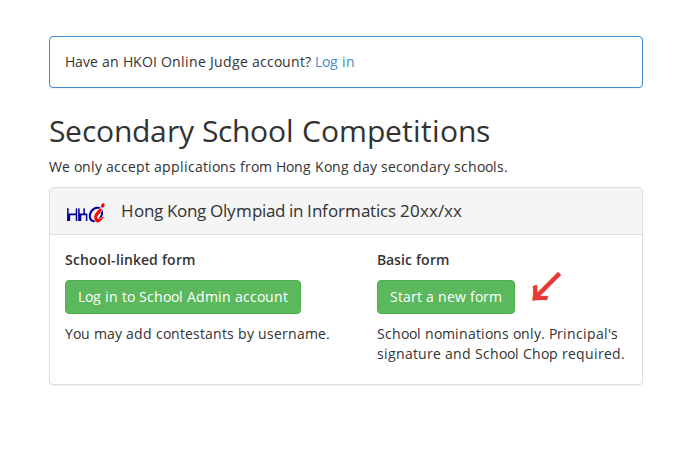
Step 1: Go to the Join HKOI system. Under “Hong Kong Olympiad in Informatics 2026/27”, select “Create new form” under “Basic form”.
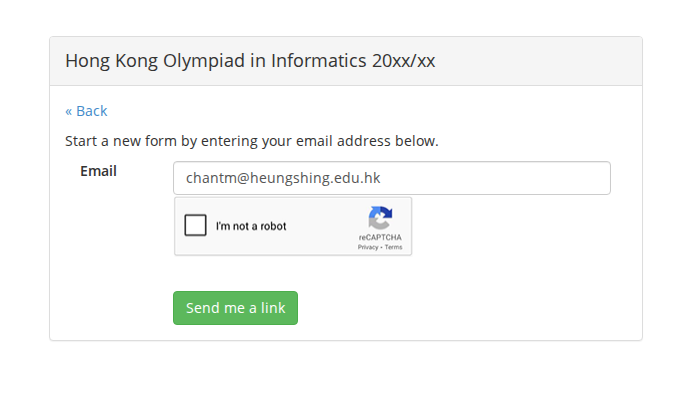
Step 2: Enter your email address, complete the verification, and select “Send link”.
Step 3: Check your inbox and follow the private link in the email. Anyone with this link can enter the form, so keep it private.
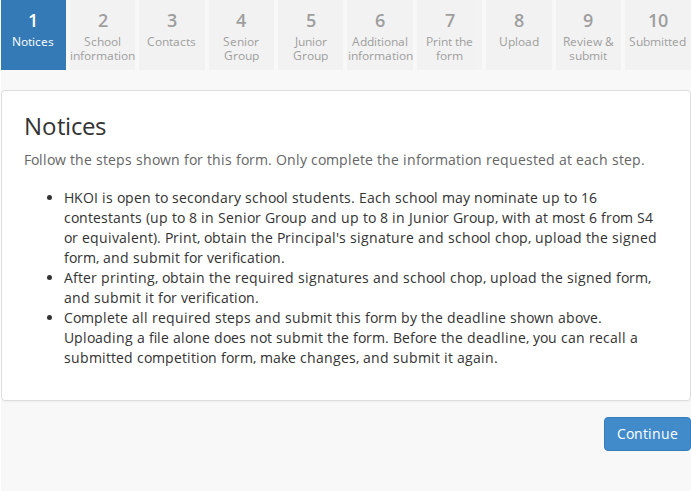
Step 4: On “Notices”, read the competition rules, eligibility requirements, group quotas, level allocation limits, and submission instructions. Select “Continue” to proceed.
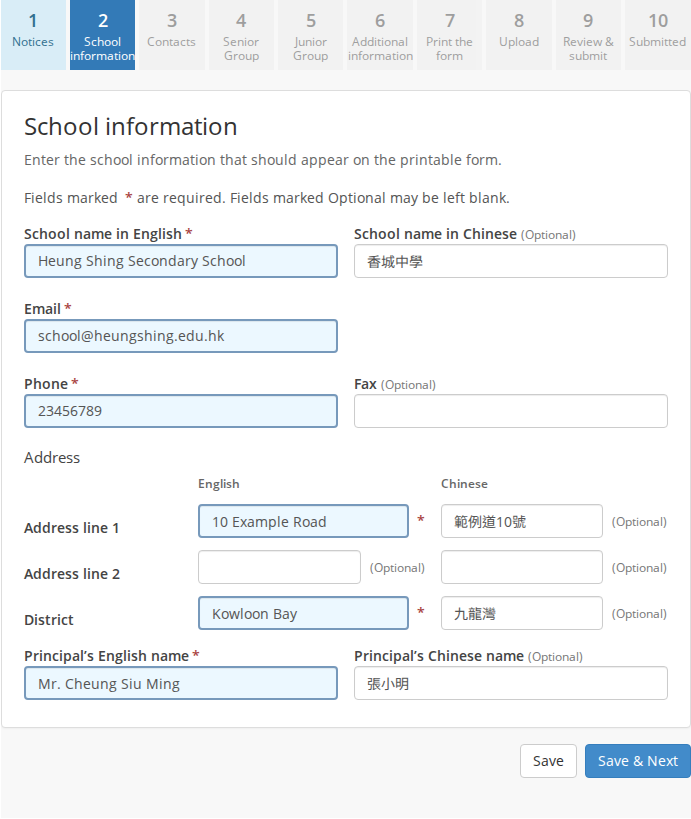
Step 5: On “School information”, fill in the school details and Principal’s name to appear on the printed nomination form, then select “Save & Next”. Required fields are marked with an asterisk (*). The address is divided into three lines, with the third line specifying the District. The Principal’s English name may include prefixes such as Mr or Ms and suffixes such as Ph.D.; the Chinese name should omit common titles.
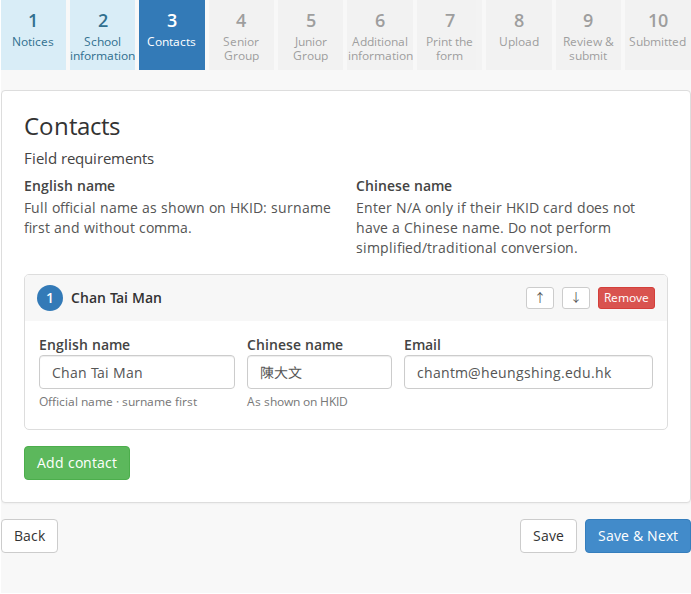
Step 6: On “Contacts”, select “Add contact person” and enter the contact person’s name, email, and phone number. The first person entered becomes the primary contact person. Select “Save & Next” to proceed.
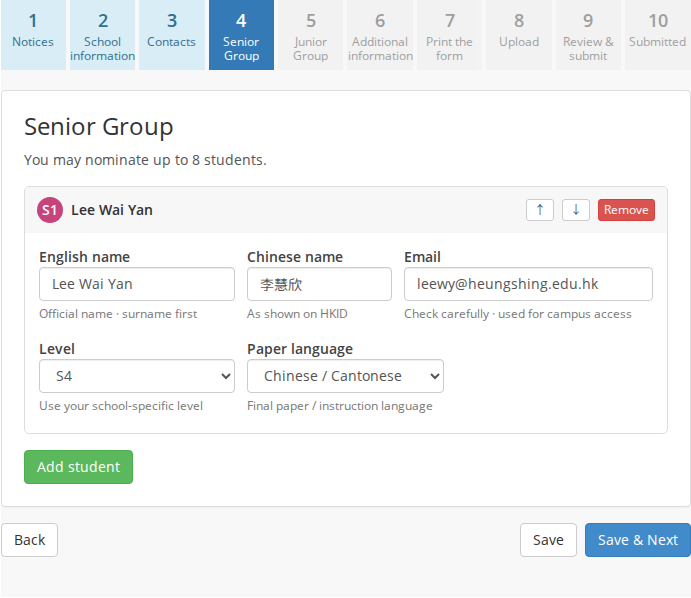
Step 7: On “Senior Group”, select “Add student” to nominate up to 8 contestants in the Senior Group. Fill in each student’s official English name, Chinese name, level of study, and preferred paper language.
Please read the eligibility requirements above the participant list before adding students. Names must match the HKID card, with English surname first and without a comma.
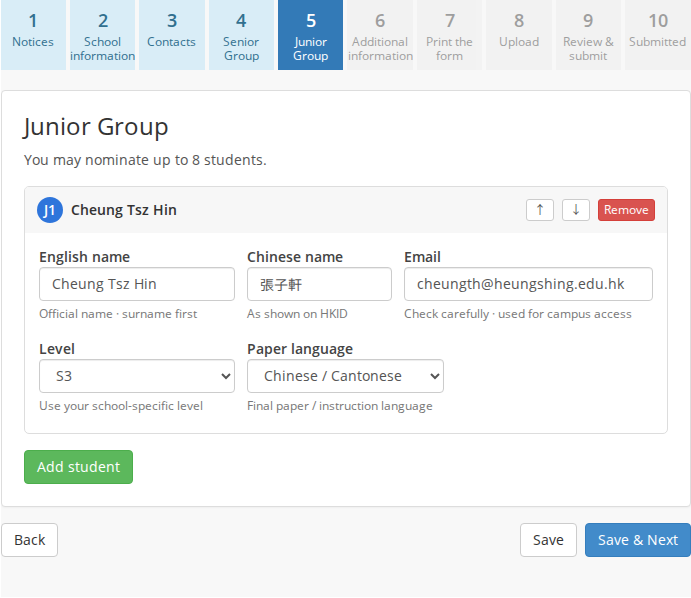
Step 8: On “Junior Group”, select “Add student” to nominate up to 8 contestants in the Junior Group. Fill in each student’s official English name, Chinese name, level of study, and preferred paper language. All contestants must be born on or after 1 July 2010 and studying at Secondary 4 or below. Note the pilot allocation limit: at most 6 contestants from Secondary 4 (or equivalent). Select “Save & Next” to proceed.
Step 9: On “Additional information”, enter any remarks or special requests that the organizers need to know (optional). Select “Save & Next” to proceed.
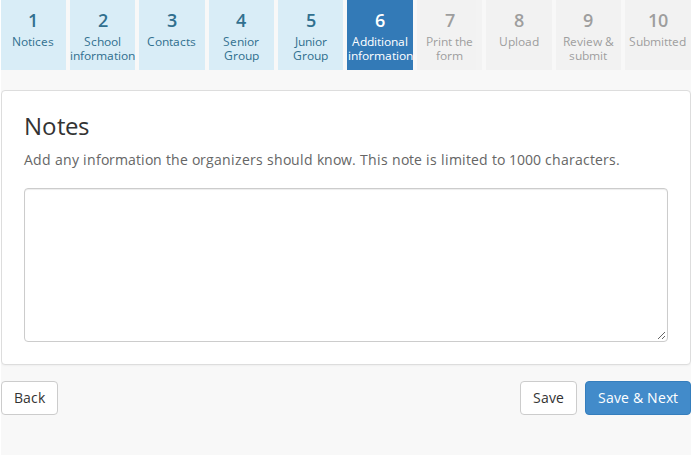
Step 10: On “Print the form”, select “Open printable form” to run the system validation checks. Print the generated form on paper and obtain the Principal’s handwritten signature and school chop. Screenshots and signatures drawn with a mouse or pasted digitally will not be accepted.
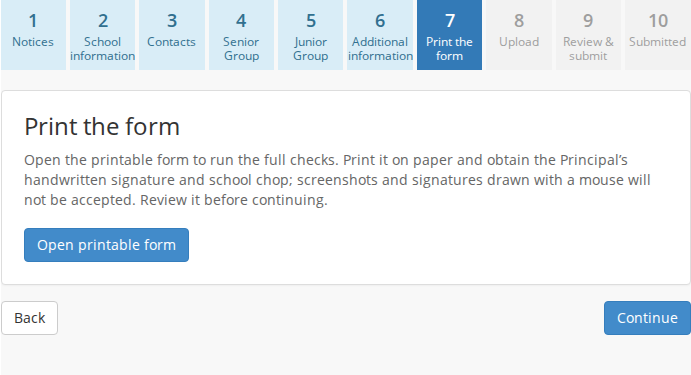
Printable form preview:
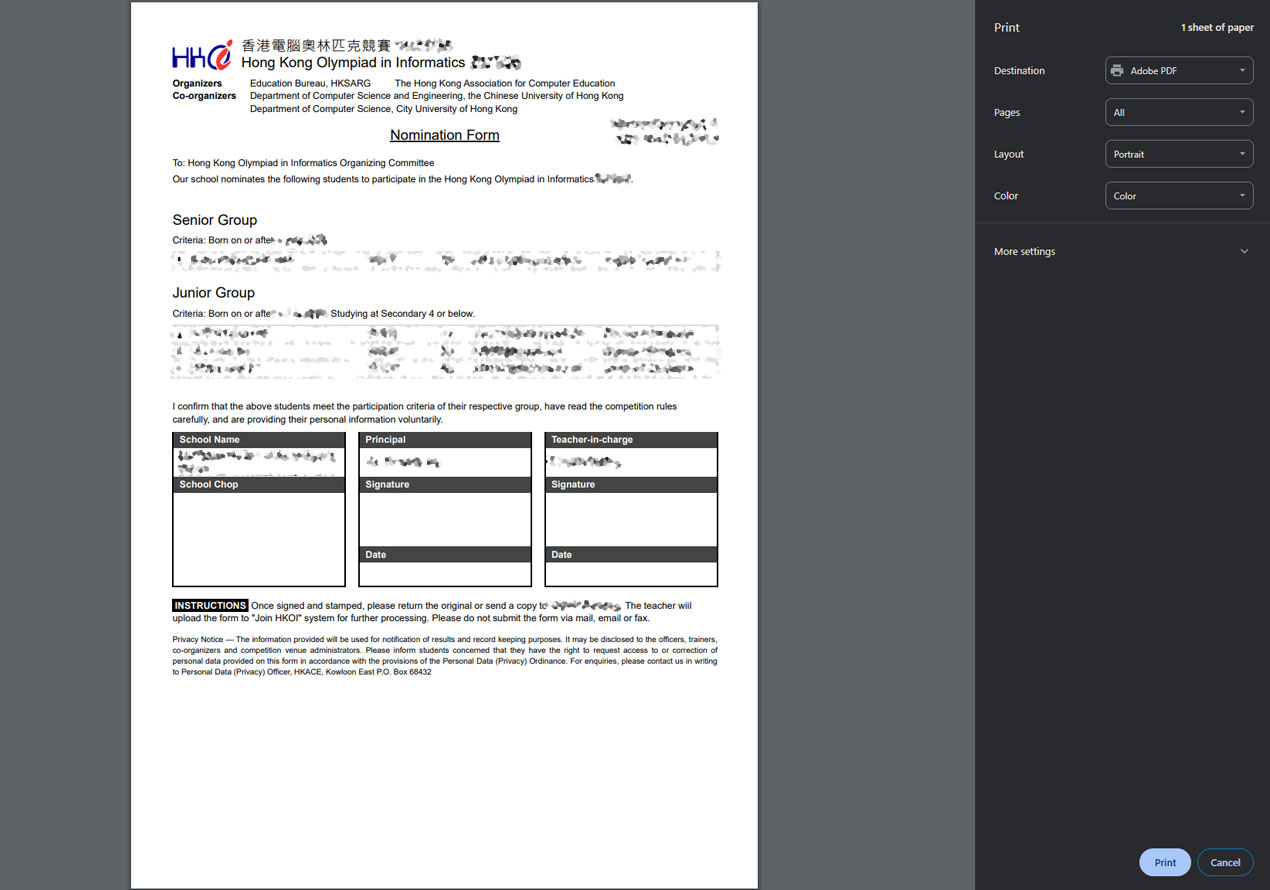
Signature and school chop area:
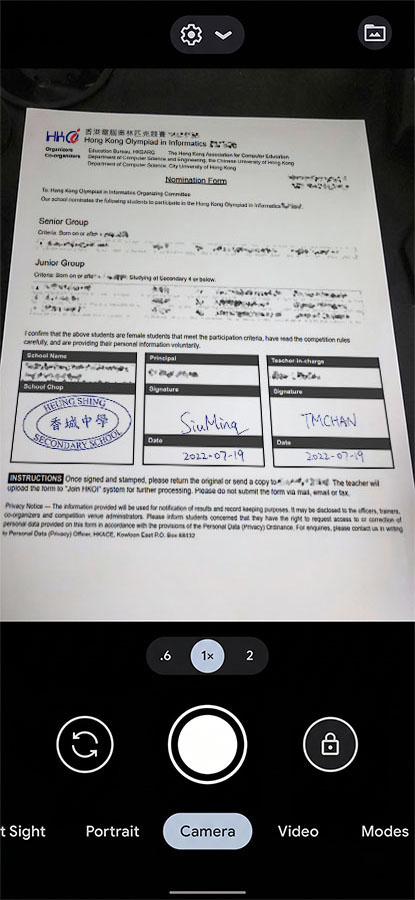
Step 11: Take a clear photo of the signed and chopped form. On “Upload”, select the image file, preview it, and select “Upload”. Please upload the image to this same online application; do not create another form for the upload.
Example camera capture:
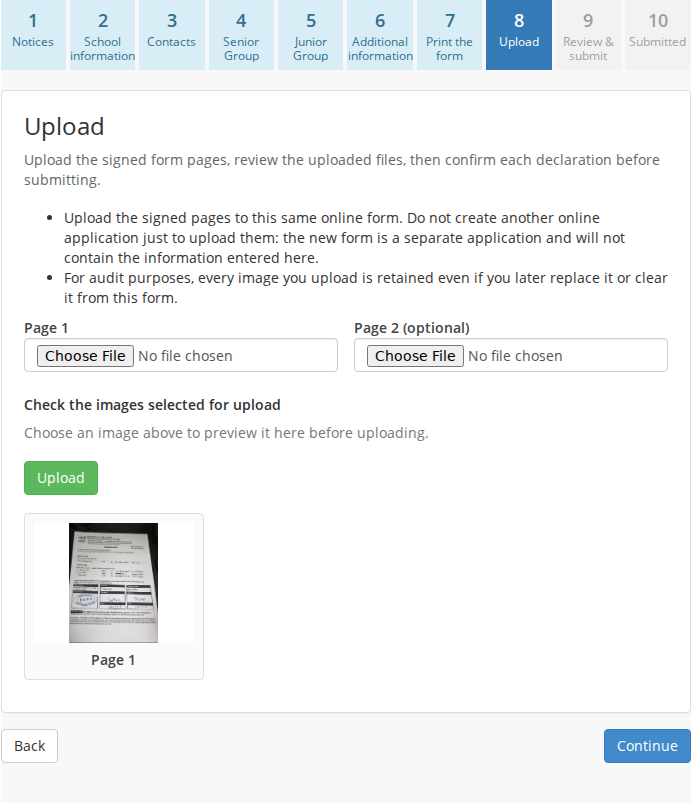
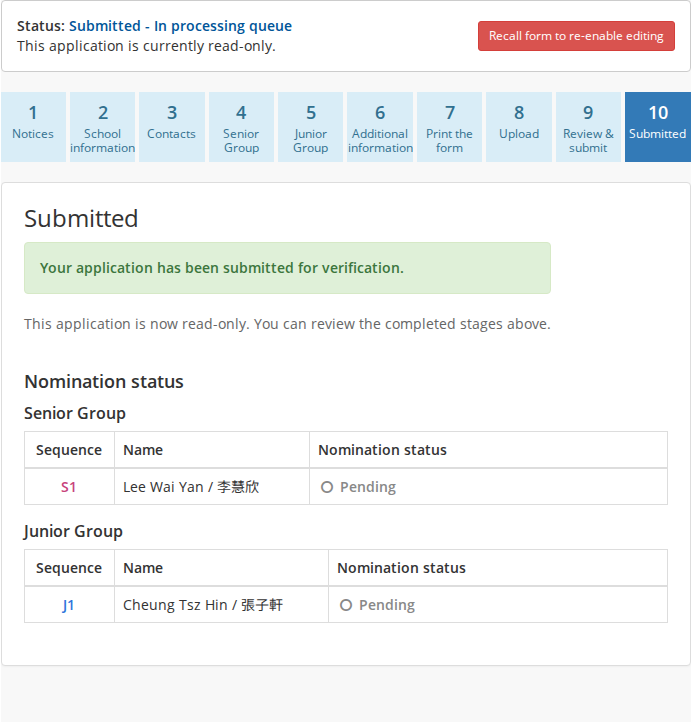
Step 12: On “Review & submit”, review the completed form, confirm the required declaration, and select “Submit nomination form”. Note that uploading the image alone does not submit the form.
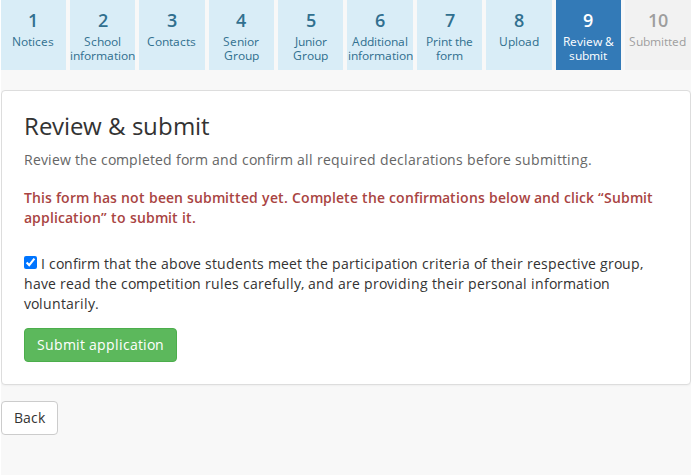
Step 13: After successful submission, the “Submitted” stage displays the confirmation notice and read-only nomination status tables for both Senior Group and Junior Group. The organizers will review the application and typically issue a confirmation email within 24 hours. The teacher can recall the form any time before the deadline, regardless of verification status, by selecting “Recall form to re-enable editing”; the form will return to “Upload”.